


Wireless network
For Fontys students and employees
1. Download the Geteduroam app (Android - Apple)

2. Open the app and select 'Fonys Hogeschool' from the list of organisations.
3. Enter your Fontys credentials.
- student: [PCN]@student.fontys.nl
- staff member: [PCN]@fontys.nl
4. Enter your Fontys password.
5. Tap 'Connect to network' and then OK.
Eduroam is now set up.
Are you inside a Fontys building and do you have a Windows laptop? Then you can connect to the eduroam network straight away. Log in with your Fontys username and password.
Are you outside a Fontys building or do you have a MacBook? Then follow the steps below:
1. Connect your laptop to an available network (for example at home) or use a hotspot.
2. Go to wifi.fontys.nl in your browser.
3. Click the blue button 'Download your eduroam installer'. (The name depends on your operating system.)
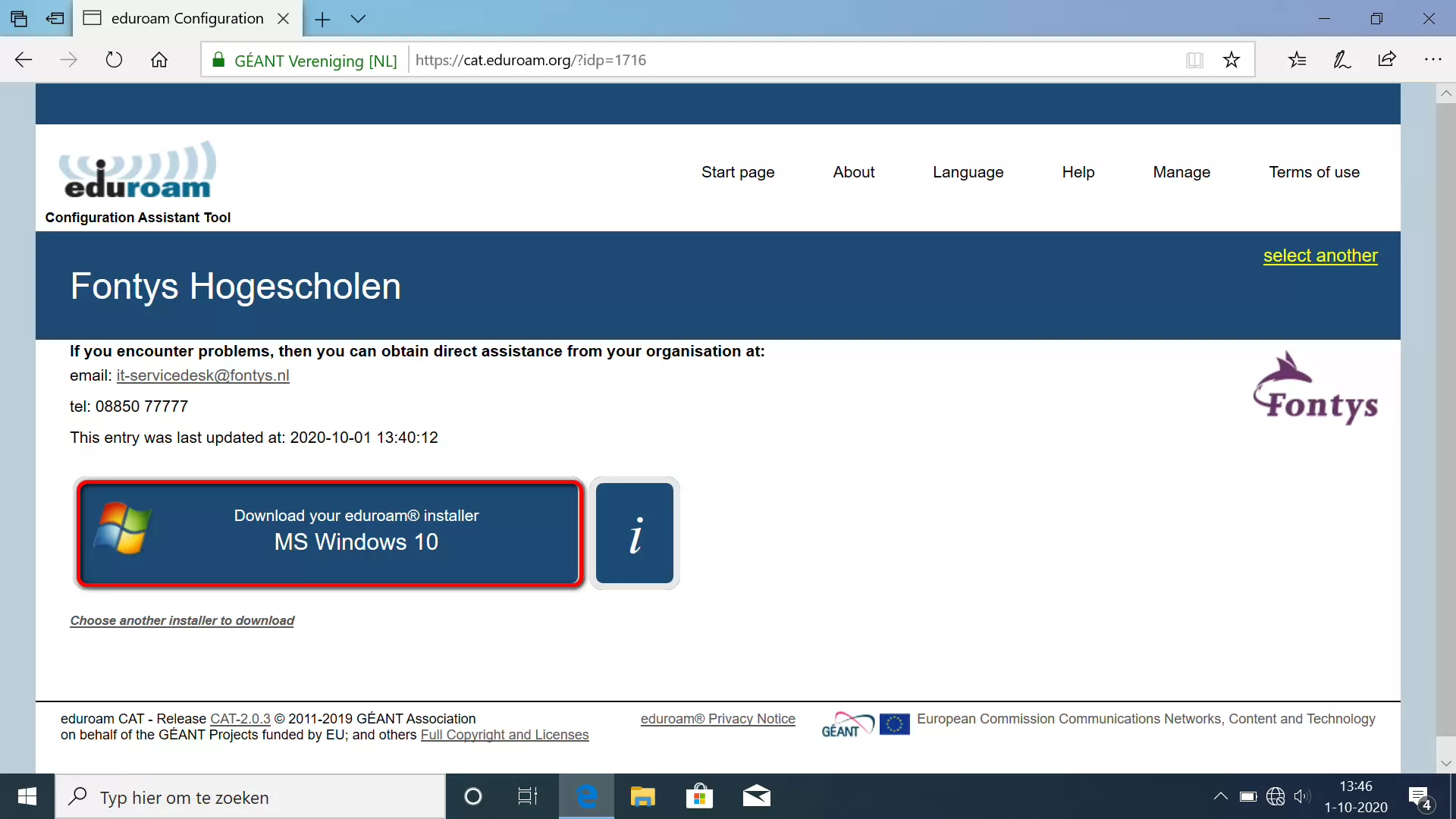
4. Click 'Uitvoeren' in the pop-up.

5. Follow the steps in the installer.
6. Enter your Fontys credentials.
- student: [PCN]@student.fontys.nl
- staff member: [PCN]@fontys.nl
7. Enter your Fontys password.
Beware: If you enter an incorrect password, you will not get a warning. The solution is to restart at step 1 and start over, this time with the correct password.
8. Click 'Finish'.
Eduroam is now set up.
For guests and visitors
With eduroam Visitor Access, you can give visitors with a link to education and research temporary access to the trusted eduroam wifi network in an easy way.
- Fontys staff member: As a Fontys staff member, you can give one person per day access to the wifi network at Fontys. Go to eva.eduroam.nl
- IT contact person: Are you an IT contact person? Then you can give up to 50 people access. Go to eva.eduroam.nl
This applies when:
- You do not have an account at another university (of applied sciences)
- You have not been given access by the person who invited you.
Most information monitors in our buildings show the screen below, with a code. This code changes every day.
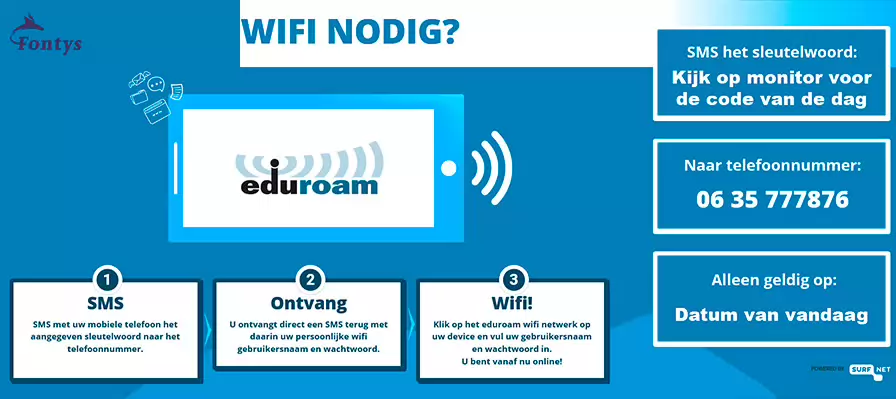
1. Find an information monitor and wait until you see the screen above.
2. Text the daily code to the mobile number on the screen.
3. You will receive a username and password almost immediately. These are only valid for today.
No information monitor found, the screen does not appear, or your contact person cannot help you? Then contact the Fontys IT Servicedesk. You will find the contact details at the bottom of this page.
Use the eduroam settings from your own institution to access the wifi network. The helpdesk of your university (of applied sciences) can give you the right information to access the eduroam network. The Fontys IT Servicedesk cannot help you with this.
Does your institution not use eduroam Visitor Access? Then call the Fontys IT Servicedesk. You will find the contact details at the bottom of this page.
Contact
For questions, please contact the IT Servicedesk.
Available on working days from 08:00 to 17:00.
- Phone number: +318850 77777
- Email: it-servicedesk@fontys.nl
Code of Conduct ICT
When you use the Fontys wireless network, you automatically agree with the Code of Conduct: